Rec Room: A New Semester Tools & Compatibility
System requirements, VR headset matrix, keybinds & UI, and practical prep utilities for RR:ANS.
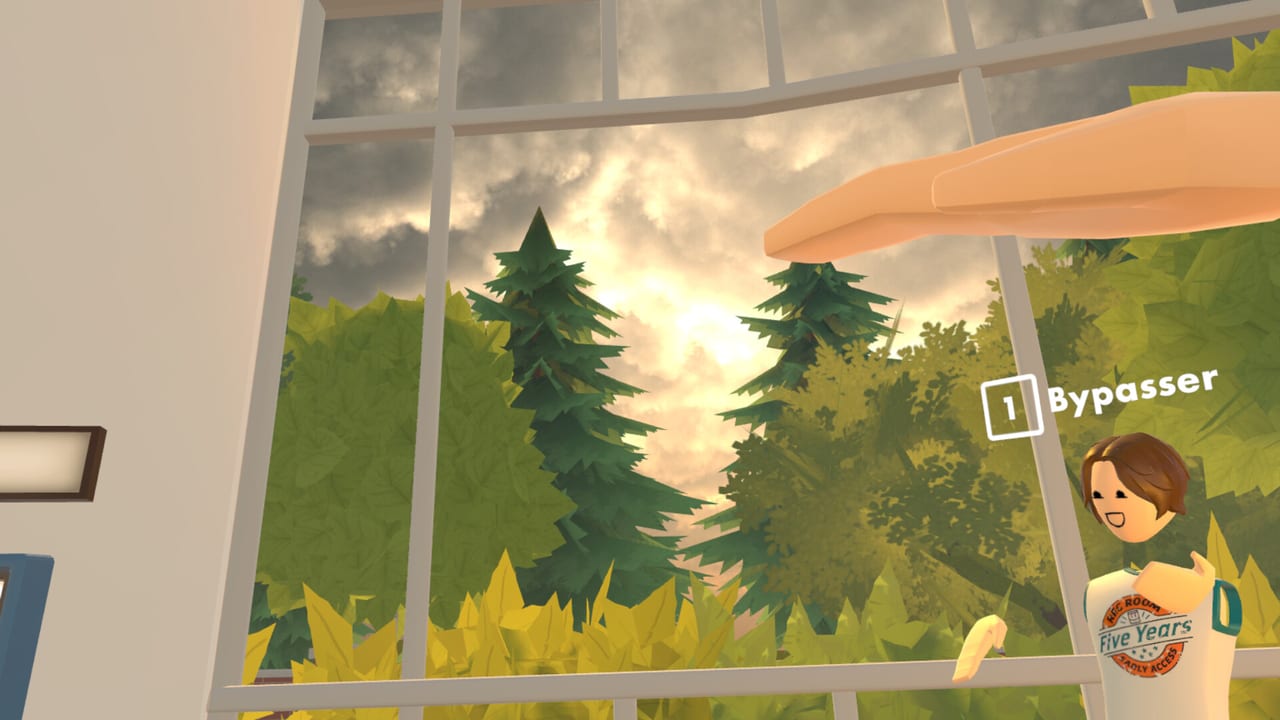
The Tools Hub collects hardware and compatibility references for Rec Room: A New Semester on Steam. Before you troubleshoot controls or Creator Pen quirks, confirm your PC and headset actually meet the PCVR bar. Child pages go deep on specs, HMDs, and customization; this hub explains how to use them together.
RR:ANS runs on Windows, macOS, and Linux, is free forever with no microtransactions, and targets PCVR (Quest via PC, Index, Vive, PSVR2 PC). Quest standalone is not supported. This wiki is unofficial and not affiliated with Rec Room Inc.
Pages in this hub
- System Requirements — minimum and recommended tables plus practical upgrade notes.
- VR Headsets — compatibility matrix and link/streaming caveats.
- Keybinds & UI — custom remaps, hide/rearrange HUD, comfort layouts, and Workshop UI pack plans.
Cross-read Getting Started, VR Controls, and the Launch Guide once hardware checks pass.
Why a tools hub exists for a social sandbox
Social games fail loudly when one friend cannot enter the lobby. A single underpowered GPU or an unsupported standalone Quest path breaks the party more often than a missing tutorial tip. Use these pages as the pre-flight layer:
- Match CPU / GPU / RAM to the System Requirements tables.
- Confirm your HMD appears as supported on VR Headsets.
- Update GPU drivers, SteamVR, and vendor software.
- Verify broadband stability—RR:ANS expects an online social connection.
- Dial in Keybinds & UI so menus do not fight your hands.
- Only then dig into Guides for movement, creation, and story.
Quick capability checklist
| Area | Pass condition | If you fail |
|---|---|---|
| OS | Win10+, modern macOS, or supported Linux | Upgrade OS before launch week |
| GPU | DX11-class VR-capable card (GTX 970 / R9 290 floor) | Lower SteamVR SS or upgrade |
| RAM | 8 GB min, 16 GB comfort | Close browsers/overlays |
| Storage | ~5 GB free plus page file headroom | Free an SSD first |
| HMD | PCVR path listed in headset guide | Do not expect Quest standalone |
| Network | Stable broadband | Prefer ethernet for parties |
| Binds / UI | Watch/menu reachable; clutter reduced | Remap via Keybinds & UI |
Performance tooling habits
Even on recommended hardware, crowded rooms and Creator Pen previews spike costs. Keep Steam’s frame timing view or vendor overlays ready, but disable heavy RGB suites if they hitch. After each major client patch listed on the Updates Hub or Steam News Digest, re-spot-check FPS in your favorite lobby. December’s SDK and denser imported rooms—see the Roadmap—may raise disk and CPU use during import tests.
Creators should treat the tools hub as part of shipping quality: publish rooms that run on minimum specs, not only on your 5600X + 6700 XT box. Note locomotion defaults that play nicely with comfort options described in VR Controls, and keep guest HUDs readable when you experiment with custom UI chrome.
Flat screen vs VR expectations
RR:ANS is built around social VR energy, yet desktop platforms are first-class Steam targets. If you boot without a headset, still verify the system tables—CPU and GPU floors matter for room simulation and avatars. Remap desktop keys early on Keybinds & UI. When you later plug in an Index, Vive, PSVR2, Steam Frame (post-release plans), or Quest-via-PC setup, revisit the headset matrix so SteamVR recognizes the device before friends invite you.
Pairing tools with social plans
Share this hub link in your Discord party channel the week before November 24, 2026. Ask everyone to paste a short “pass/fail” on GPU and headset. The Players Hub covers etiquette once everyone can connect; tools pages exist so that conversation happens before launch night.
Collectors chasing Winter Wonderland cosmetics from December 1 do not need exotic hardware, but stutter-heavy sessions make daily login streaks miserable. A stable 90 Hz (or comfortable reprojection) beats a slideshow while hunting rarities described in the Cosmetics Guide and Winter Wonderland.
Official destinations for patches and drivers
Use the Links Hub for Steam, Discord, YouTube, and TikTok. Driver downloads should come from GPU vendors and headset makers—not random “VR optimizer” downloads. When promo codes eventually appear, redeem them in-client after your hardware path already works.
How to escalate problems
- Confirm specs and headset support here.
- Verify controls, comfort, and HUD layouts in VR Controls and Keybinds & UI.
- Check whether a known EA issue is mentioned under Updates.
- Ask in Discord with GPU model, OS, headset, and whether Quest Link/Air Link is involved.
- Avoid piracy or cracked “performance mods”—they conflict with a free Steam install and can ban accounts.
Bottom line
Tools pages are the unglamorous backbone of a good RR:ANS week: know your PC, know your HMD, set your binds, update your runtimes, then go play. Start with System Requirements, VR Headsets, and Keybinds & UI, keep Launch Guide nearby for calendar context, and graduate into Guides once the client is stable.
Frequently Asked Questions
Quick answers for Rec Room: A New Semester players.
What should I check first—GPU or headset?
Confirm system requirements first, then verify your headset has a PCVR path. Quest standalone will not work.
Does RR:ANS support macOS and Linux?
Yes. Steam lists Windows, macOS, and Linux. VR still depends on a working SteamVR-class setup on that OS.
Are these pages official system tools?
No. This is an unofficial fan wiki summarizing public requirements and compatibility notes for players.
Where do I go after my PC passes the checklist?
Open Getting Started and VR Controls, customize Keybinds & UI, then invite friends using tips from the Players hub.
Where are custom keybinds documented?
See the Keybinds & UI page for remapping, hiding or rearranging HUD elements, comfort layouts, and planned Workshop UI packs.